Google Business Profile: Restaurant Menus and Ordering Links
Set up and check restaurant menu and food-ordering links on Google Business Profile, with official sources and a practical mobile verification log.
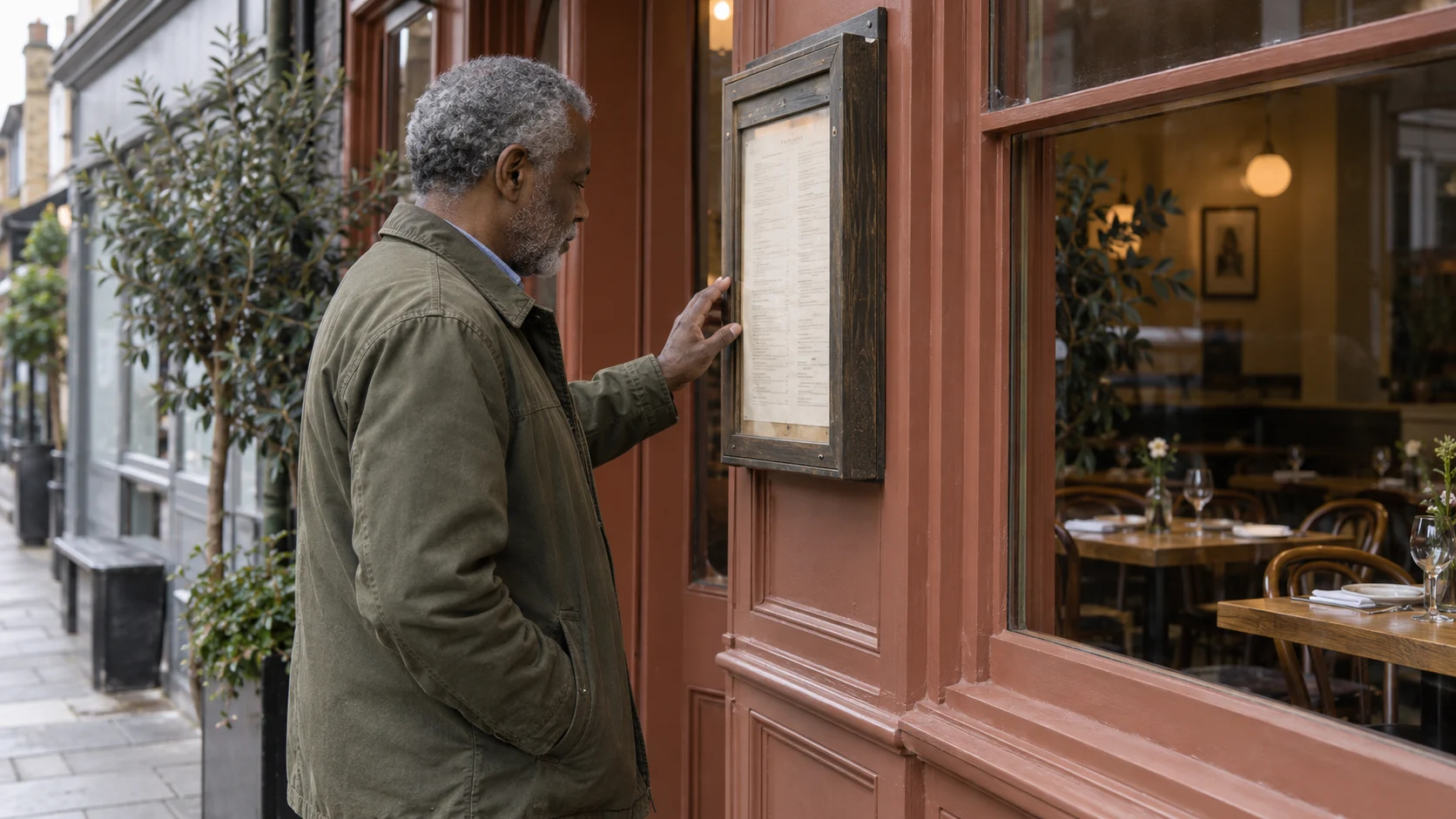
Your Google Business Profile should help someone reach the right menu and the right ordering page. Those are separate jobs. A menu link helps a customer decide what to eat; an ordering link should take them somewhere they can complete the order.
This guide was checked against Google’s documentation on 25 September 2026. Controls and availability vary by business and region. The verification steps below are an Ampliflow working method, not a promise that changing links will improve rankings.
If you are still planning the website itself, start with the restaurant website design guide. For the direct-ordering product and business-specific setup, see Fuudster and food-business websites.
Separate the menu from the ordering destination
Before editing Google, open both destinations on a phone. Your menu should show the correct location, current dishes and prices. Your ordering destination should explain collection or delivery availability and lead into a working journey. Avoid sending everyone to a general homepage when the task is already clear.
Google allows a menu link and separate action links. Its documentation explains how to add an action link and choose a preferred link where that option is available. Google’s local business links guidance.
For a business with several branches, keep a mapping of profile, location, menu URL and order URL. Do not assume a link for one branch is safe for the others. A correct-looking menu can still be attached to the wrong kitchen.
Update the menu link and check the menu source
Google’s documented menu-link route is Edit profile, then Business information or Contact, then Menu link. Enter the menu URL and save. Where the menu editor is available, it also lets food businesses manage items, descriptions, prices and sections. Google says menu changes can take 24–48 hours to appear. Profiles with menus supplied through the API may not have the same editor. Google’s menu editor guidance.
Treat any imported or automatically transcribed menu as something to review. Compare it with the current approved menu: names, prices, item availability and location. Do not assume a scanned photo has been interpreted correctly. Record which source supplied the information so the next correction reaches the right place.
A useful menu page is readable without pinching a photograph. Keep the telephone or enquiry route available for questions the page cannot answer. For ordering-readiness checks, use the launch acceptance checklist.
Add the ordering link and choose the preferred route
In Google’s documented flow, open the Business Profile and select Food ordering. With ordering enabled, select an existing provider or add a link. Where offered, mark your preferred collection or delivery route and save. Turning off acceptance hides the ordering options, including links you added; it is not a selective way to remove a single provider. Google’s ordering-options guidance.
Check what the customer actually sees after the edit. A saved change in the management view is not enough. Open the public profile in Search and Maps and follow each visible ordering choice.
Keep marketplace links where they serve a purpose. Before removing one, understand what service it provides and how customers use it. An own-site order may need a different delivery arrangement. The direct-ordering cost guide explains why comparing a commission percentage alone can mislead.
Use a five-check public verification log
The following is an original working checklist. It helps a member of staff repeat the check and explain what changed; it is not a Google ranking factor list.
From profile to the right kitchen
- 01
Identity
The profile, trading name and branch match the destination.
- 02
Menu
Current dishes and prices agree with the approved menu.
- 03
Availability
Opening hours and collection or delivery options are accurate.
- 04
Action
The visible ordering link reaches a usable customer journey.
- 05
Ownership
A named person records the result and owns the next correction.
Write down the date, device, public profile URL, destination URL and result. Capture a screenshot of public information if useful, without customer details. Check mobile text, link focus and whether the destination opens properly without an existing account or saved basket.
If a link fails, distinguish the failure. Does Google show the old URL? Does the destination redirect to the wrong branch? Is the website open while the kitchen is closed? Each problem has a different owner. Fix the source of the mismatch rather than repeatedly changing every setting.
Measure the journey, not just the click
A profile interaction, website visit and completed order are different events. Record them separately. If your analytics and ordering provider can reliably connect a campaign link to a completed order, use that evidence. If they cannot, report visits and orders separately rather than inventing an attribution rate.
Keep a note of the release date and avoid making several unrelated changes at once. A change in orders could reflect weather, opening hours, promotions or demand elsewhere. A clean log helps you investigate; it does not prove that the link edit caused the change.
Review after a menu revision, new ordering provider, branch change or changed opening hours. If customers report difficulty, replay their exact route on a phone before assuming the problem is search visibility.
Where Fuudster fits
Fuudster is Ampliflow’s direct-ordering product for UK takeaways and restaurants. Explore the demonstration and agree the configured journey before directing public traffic to it. Product illustrations use example data; they are not evidence that payments, fulfilment or your location are ready for live orders.
Start at the food-business website hub, or explore the specialist restaurant and takeaway pages. The useful outcome is simple: someone who wants your food can find the correct information and take the next step with confidence.